

- each hotel is an item of a collection, edited by the operations team in the portal;
- the Conversation Hub sends the id of the WhatsApp number that
received the message (
phoneNumberId), and the agent uses it to pick the hotel; - a new hotel goes live by adding an item in the portal and listing its number. No deploy.
1. Declare the hotel schema
manifest/index.ts
itemLabel: 'name'lists the hotels by name, anditemSubtitle: 'pms.propertyCode'shows the PMS code next to it, so two “Hotel Centro” in different cities are easy to tell apart.- The nested objects (
amenities,pms,payment,handoff) become sub-sections of each hotel, reachable from the side rail. .min(1)onname,propertyCodeandmerchantIdmakes them required: a hotel can’t be saved without them.- Fields with
.default()come pre-filled for every new hotel.
2. Route by number
main.ts
- The Hub sends
phoneNumberIdat the top of the request body, next tometadata(which carriesconversationId,contactPhoneandcontactName). The portal tester andrf testsend metadata only, sonumberOfreads the playground value first and the Hub field after it. - An unknown number hands off instead of guessing a hotel. A guest of hotel A should never get hotel B’s prices because a number wasn’t listed yet.
hotelIdandconfigInfo()in the output let you trace, in the execution logs, which hotel and which config version produced each answer.
3. Deploy and add the first hotels
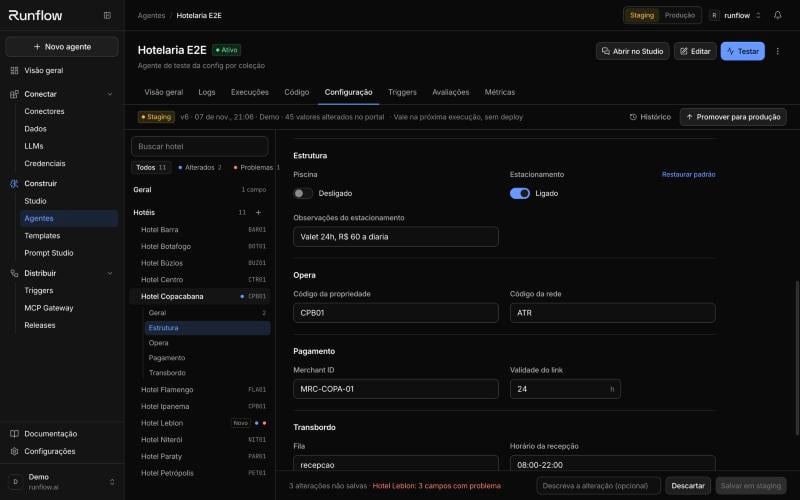
Each hotel opens as one form, with its sub-sections in the rail
manifest/staging.json and deploy
once. They show up in the portal and the team can adjust them from there:
manifest/staging.json
4. Test before going live
In the agent tester, pick the Hotel Copacabana scenario (from the playground fixtures) and send a message: the answer should use Copacabana’s check-in time. Then pick Number without a hotel and confirm the handoff. Locally, pull the staging values and run:5. Promote
When staging is right, click Promote to production in the Configuration tab. The dialog lists every field and hotel that changes. Promote the agent code first if this is the first version with thehotels field.
Operating it day to day
Next steps
Agent Config
Every schema type, UI hint and CLI command
Conversation Hub SDK
Reply, send media and hand off to humans from the agent